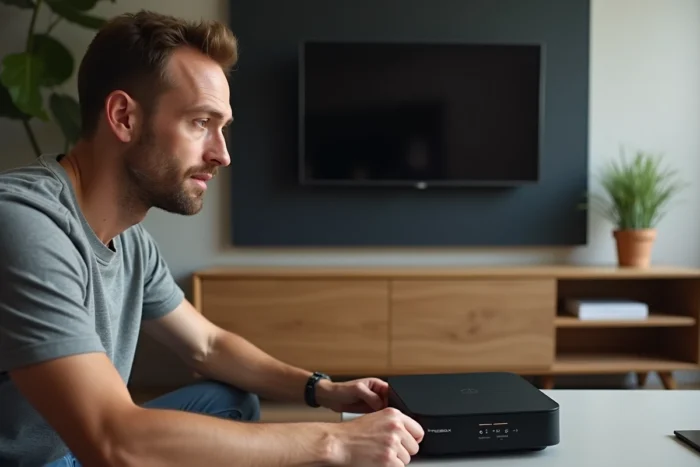
The Freebox Delta consists of two distinct units: the Server, which manages the internet connection, and the Player, dedicated to television. Restarting the Freebox Delta involves rebooting one or the other of these devices to resolve a network malfunction, slow Wi-Fi, or a TV display freeze. The procedure varies depending on the unit in question and the method chosen.
Restarting the Delta Server from Freebox OS
Freebox OS is the administration interface accessible from a web browser on your local network. This method avoids any physical manipulation of the unit and allows for a clean restart of the Server by closing active processes before rebooting.
To access it, type the address mafreebox.freebox.fr in your browser’s address bar from a device connected to the Freebox network. After authentication, the dashboard displays the status of the Server. The restart function is located in the system settings of Freebox OS.
Before initiating the restart, ensure that no large downloads or file transfers are in progress. The Delta Server hosts an internal hard drive, and interrupting a write operation can corrupt data. Knowing how to restart the Freebox Delta starts with this preliminary check, which is often overlooked.

Electrical Restart of the Freebox Delta: Server and Player
When Freebox OS is inaccessible (total loss of connection, frozen Server screen), the electrical restart remains the fallback solution. The principle: cut the power, wait, then reconnect.
Procedure for the Server
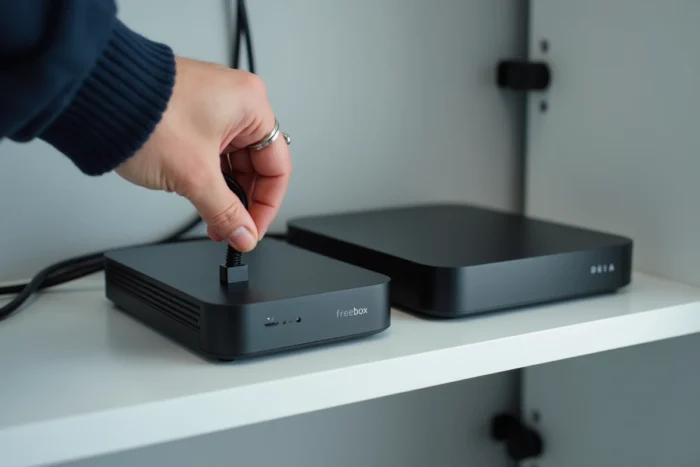
Unplug the power cable from the back of the Server unit. Wait about thirty seconds before plugging it back in. This delay allows the internal capacitors to discharge and the network modules to reset properly.
Upon restarting, the Server goes through several initialization steps displayed on its touchscreen. The complete sequence can take several minutes, during which the internet connection and Wi-Fi remain unavailable. Do not unplug the unit during this phase.
Procedure for the Player
The Free Player (TV unit) restarts independently of the Server. Two options:
- From the remote control: access the Player settings, then the System menu, and select Restart. The Player restarts its Android TV system without affecting the internet connection.
- By electrical disconnection: remove the power cable from the Player, wait about twenty seconds, then reconnect. This method is useful when the Player is unresponsive to the remote control.
- From the Freebox Connect app on smartphone: the app allows remote control of the Player’s restart, handy if the remote control is malfunctioning or the batteries are dead.
Freebox Updates and Restarting the Delta Server
Free regularly deploys firmware updates for Freebox Servers, including the Delta model. These updates fix bugs, improve network stability, and sometimes add new settings in Freebox OS.
A simple restart of the Server is enough to retrieve and install the latest available version. The Freebox Server 4.12.2 update, for example, installs automatically during the restart without any additional manipulation. Some network settings modified by Free only take effect after this restart.
If your Freebox Delta has been exhibiting abnormal behavior for several days (frequent Wi-Fi disconnections, unusual latency), a restart often forces the application of a patch that has already been downloaded but not yet activated.
Freebox Delta Stuck on Restart: Diagnosis and Solutions
A restart that does not complete normally indicates a problem different from a simple software bug. Several situations require a specific response.
Server Stuck on an Initialization Step
If the Server is stuck on step 2 or displays a type 20/FF error in a loop, the problem often stems from the connection with the Free network (line incident, authentication issue). In this case:
- Check the status of the Free network via an outage tracking site. A widespread incident in your area makes any restart unnecessary until Free has restored service.
- Check the physical connections: fiber or xDSL cable properly inserted, clean connector, no bending on the fiber optic.
- Attempt a prolonged electrical restart (unplugging for two minutes instead of thirty seconds) to force a deeper reset of the internal modules.
- If the blockage persists after several attempts, contact Free support. The issue may require intervention on the line or replacement of the unit.
Difference Between Restart and Factory Reset
A restart (reboot) relaunches the system without erasing any settings. The factory reset (reset) erases all customized settings: Wi-Fi configuration, network name, passwords, port forwarding, NAS settings. This operation should only be used as a last resort, after exhausting other solutions.
On the Freebox Delta, the factory reset of the Server is done through the touchscreen of the unit: upon restart, when the Free logo appears, touch the screen to access the recovery menu, then select “Factory Settings”.
Scheduled Restart and Good Network Practices
Freebox OS allows you to schedule automatic restarts of the Server at a specific time, typically at night. This feature maintains network stability over the long term without manual intervention.
A periodic restart (once a week or every two weeks) frees up the Server’s RAM, clears congested routing tables, and forces the retrieval of pending firmware updates. For a household with many connected devices, this habit significantly reduces Wi-Fi micro-cuts.
The Freebox Delta, like any network equipment, accumulates residual states during continuous operation. A regular restart remains the simplest and most effective maintenance gesture to preserve the performance of its fiber connection.